 SirCleaner - Getting Started
Welcome to SirCleaner! Here is the quickest way to get started.
Starting with v2.9.0 the program now has a First Run Wizard to make things easier for new users!
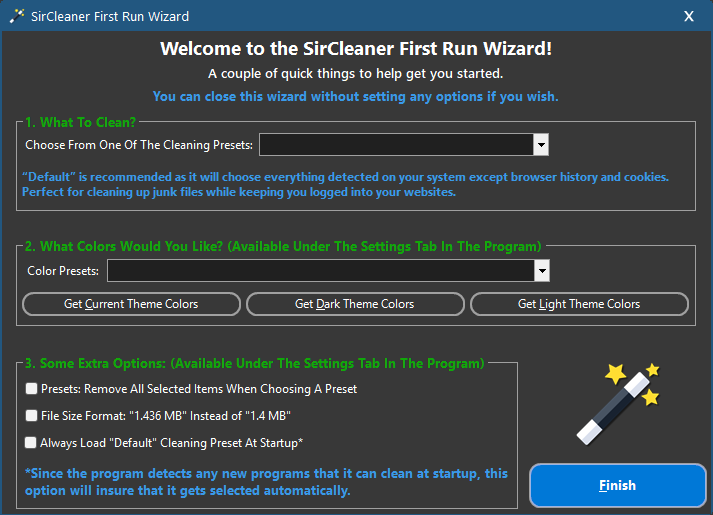
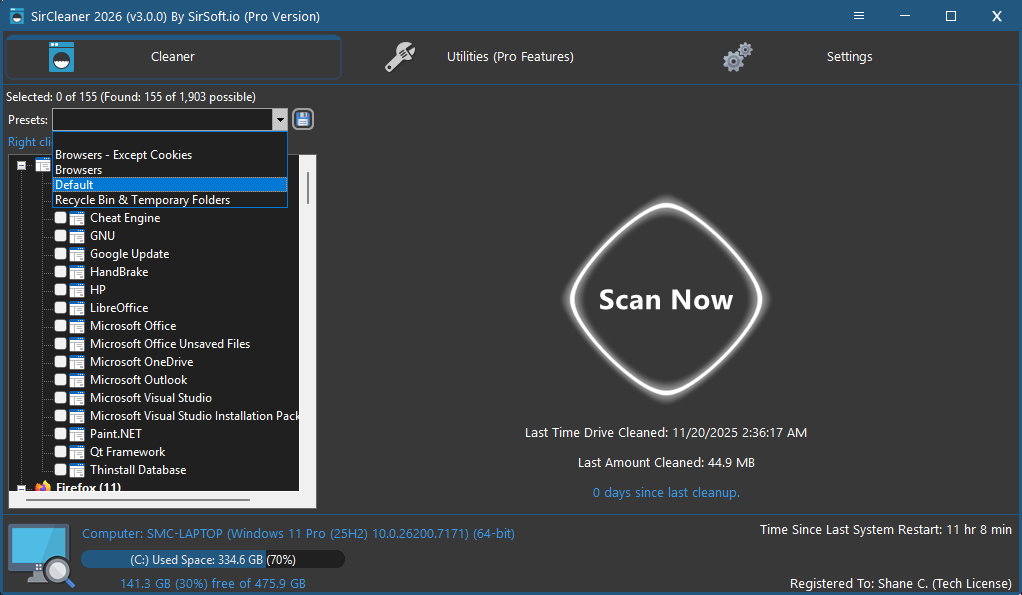
When running SirCleaner the easiest choice is to click on presets and click Default.
This will mark everything to be cleaned except browser Cookies & Site Data, and the browser History.
Of course, you can always choose what you would like to have cleaned.
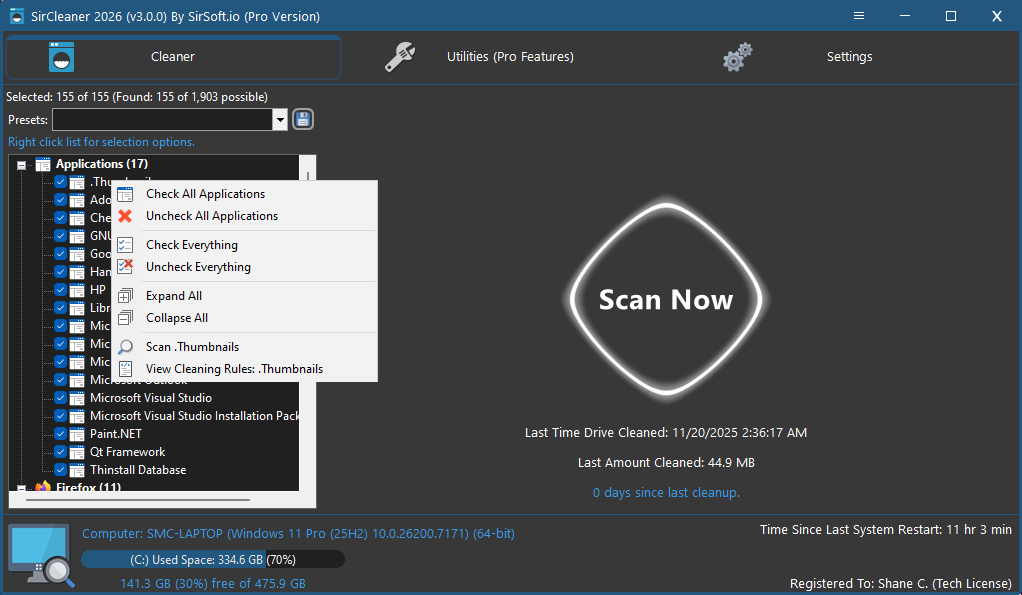
You can right-click on the tree view for even more selection options.
This includes an option to view the cleaning rule for the item which you right-clicked. This is helpful if you want to know what the SirCleaner will be looking for during its scan and will identify for deletion (cleaning).
Once you have the items marked to be potentially cleaned, click "Scan Now."
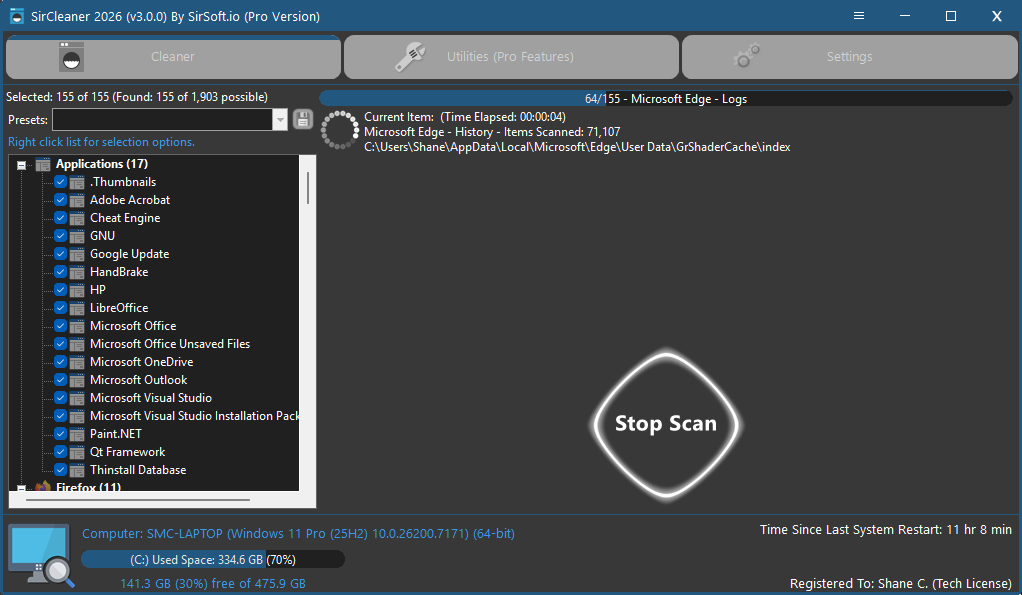
You will see the progress as the items are being scanned. Nothing is being removed. This is just a scan, not a cleaning (deletion) of the found files.
Once the scan is complete, you will see a summary of the scan results.
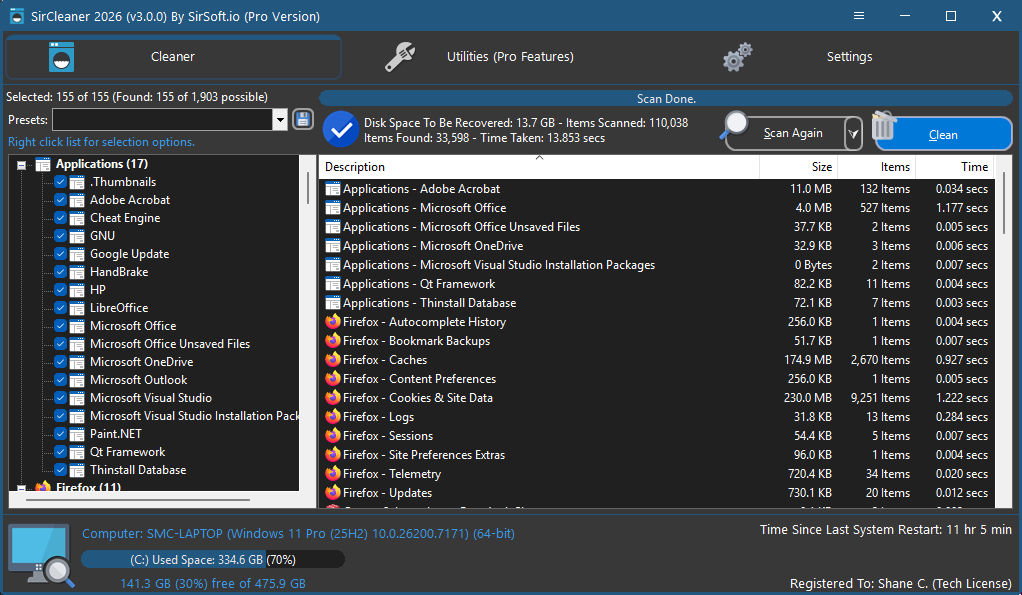
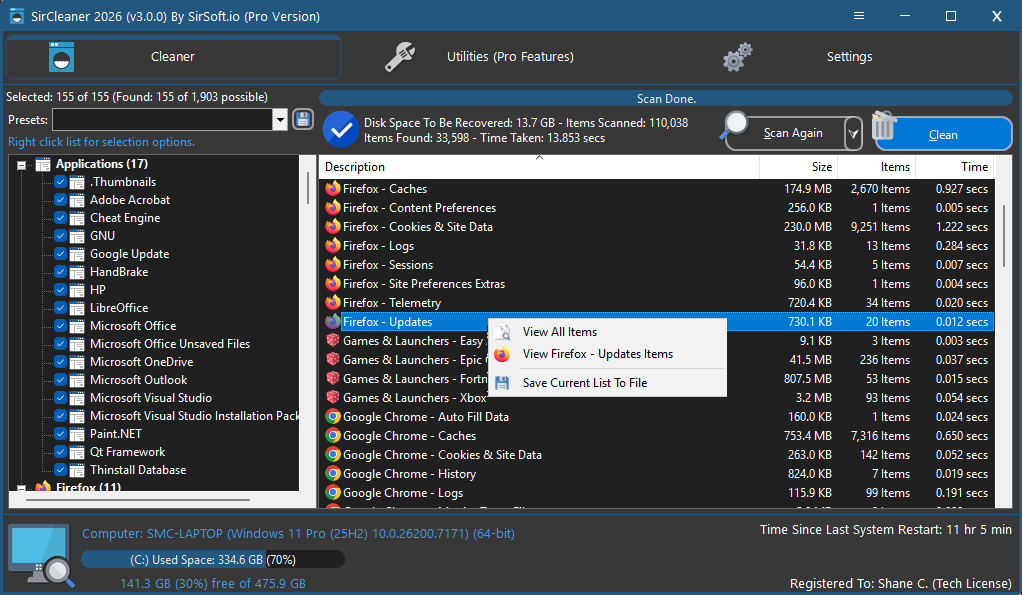
If you would like to view everything found or just the items found for a selected item, just right-click on the item.
The right-click menu allows you to view all items or the select item and also save the summary to a text file.
You can also double-click on an item to view just its items that were found by the scan.
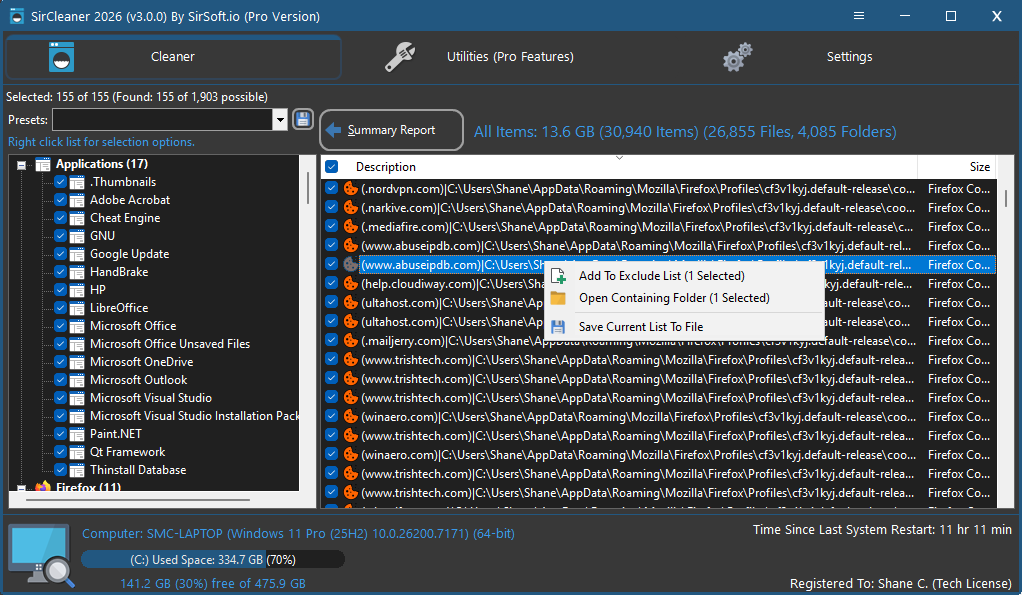
When you choose to View all items, it also has a right-click menu.
Here you can add items to the Exclude List, Open the folder the item is in, and also Save the current list to a file.
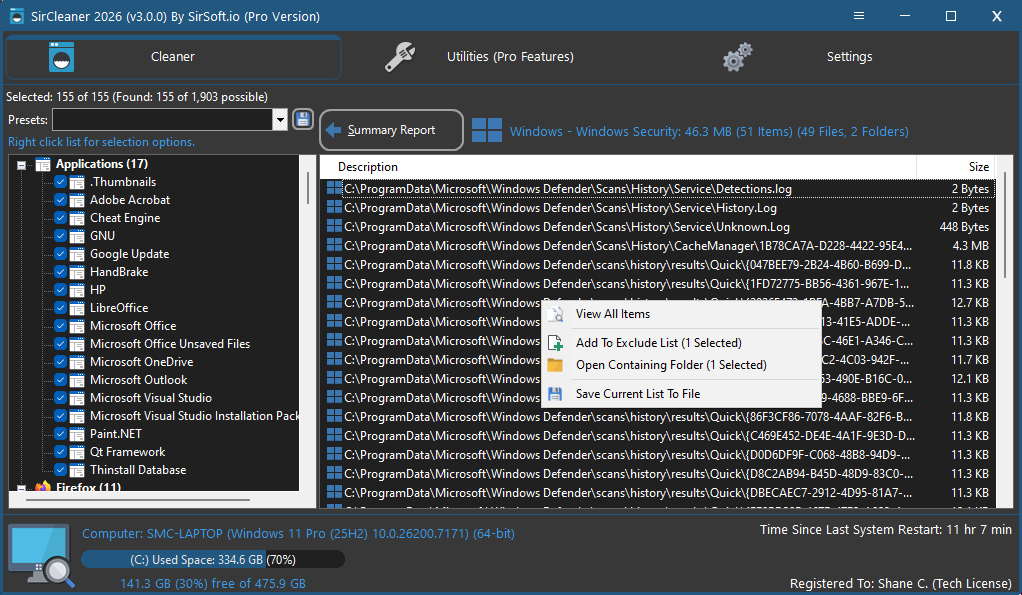
When you view just the items of a selected item it also has a right-click menu.
Here you can View all items, Add items to the Exclude List, Open the folder the item is in, and also Save the current list to a file.
When you are ready to commence cleaning the found files, click the "Clean" button at the top right, which will appear on the screen when all of the right-click menus are exited.
While it is cleaning and removing the files found, SirCleaner will display the cleaning progress, and once the cleaning is completed, you will see the next screen.
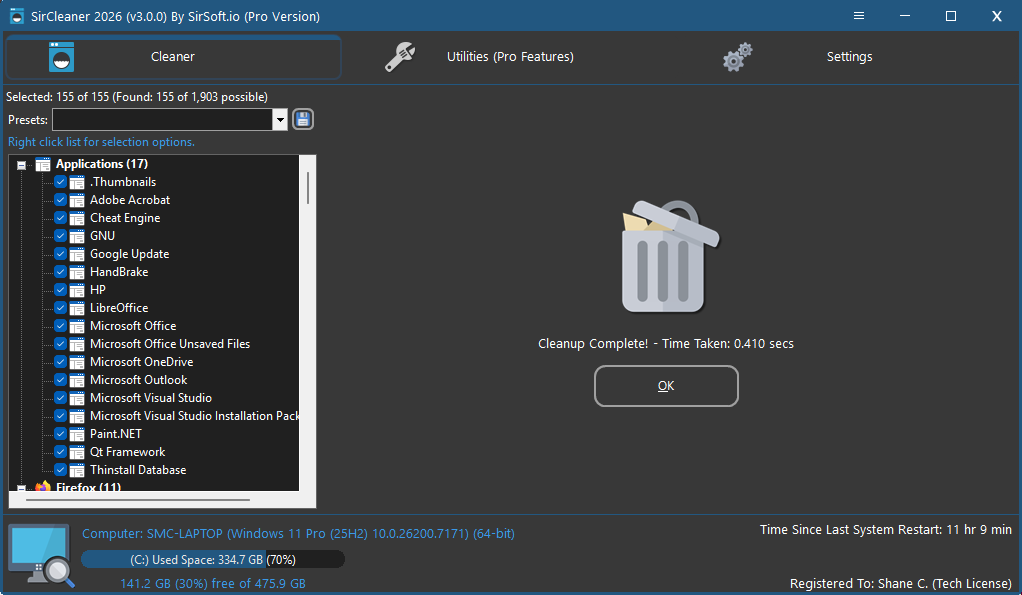
That’s it! You have just cleaned up your computer of junk and other unnecessary files, freeing up the disk space that was occupied by those files.